
How to Use Domingo App: A Step-by-Step Guide for Seamless Project Management
CP
In today's fast-paced world, effective project management is crucial for success. The Domingo App offers a powerful solution to streamline your project management tasks, ensuring you stay organized and efficient. This guide will walk you through how to use the Domingo App for seamless project management.
Getting Started with Domingo App
Before diving into the features, you need to set up your account. Download the Domingo App from your preferred app store and register using your email. Once you’ve successfully created an account, you can start exploring the app’s interface.
Upon logging in, take a moment to familiarize yourself with the dashboard. This is your command center, where you’ll find all your projects, tasks, and team collaborations.

Creating and Managing Projects
Setting Up a New Project
To create a new project, click on the "New Project" button in the dashboard. You’ll be prompted to enter the project name, description, and deadline. Assign team members to the project by selecting them from your contact list.
Ensure that you clearly define the project scope and objectives. This will help keep your team aligned and focused on the goals.
Organizing Tasks
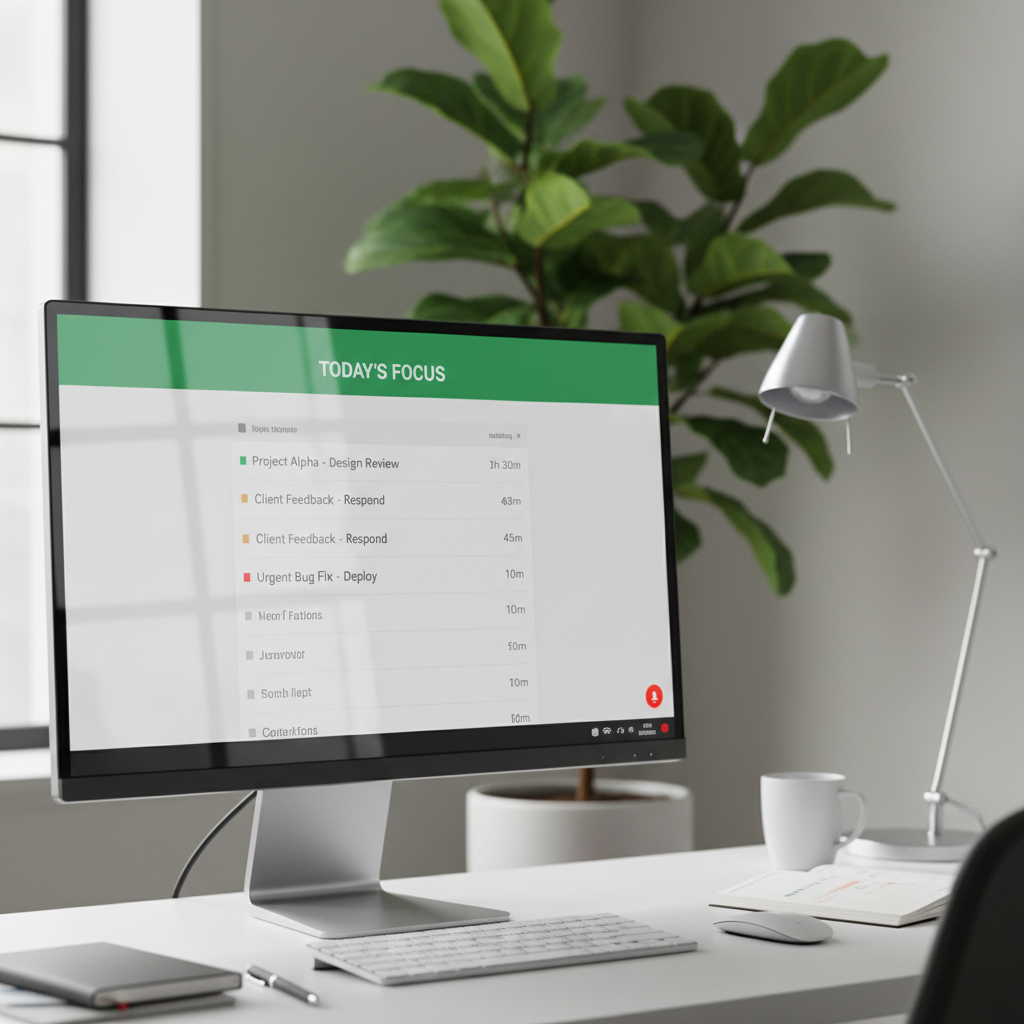
Once your project is set up, it’s time to break it down into manageable tasks. Use the “Add Task” feature to create tasks within your project. You can assign tasks to specific team members, set due dates, and add relevant notes or files.
Tracking Progress and Collaboration
Monitoring Task Completion
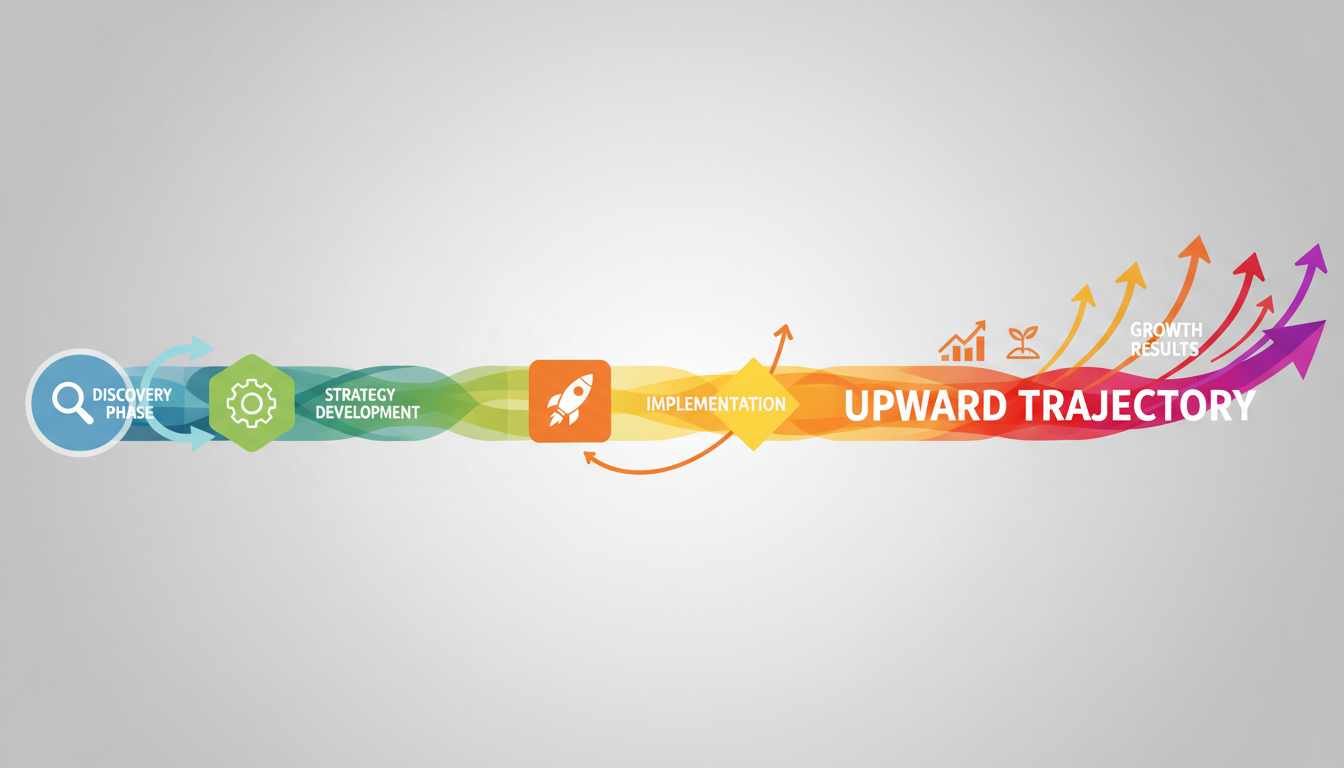
The Domingo App offers powerful tracking features. Use the progress tracker to monitor which tasks are complete, pending, or overdue. This visual representation helps you identify bottlenecks and address issues proactively.
Encourage your team to update task statuses regularly to maintain transparency and accountability.
Communicating with Your Team
Effective communication is key to successful project management. Use the in-app chat feature to communicate with your team members. You can discuss tasks, share updates, and resolve any issues in real-time.
For more structured communication, consider using the app's video conferencing feature. This is particularly useful for remote teams.
Utilizing Advanced Features
The Domingo App also offers advanced features such as integration with other productivity tools, custom reporting, and automated notifications to keep you informed of critical updates.
Explore the settings to customize these features according to your project needs. This personalization ensures that you get the most out of the app.

By following this guide, you’ll be well-equipped to use the Domingo App for effective project management. Embrace these tools to enhance productivity, foster collaboration, and achieve your project goals with ease.